git 指令可以结合 linux 指令使用
<font style="color:rgb(51, 51, 51);">解决GitBash乱码问题</font>
- <font style="color:rgb(51, 51, 51);">打开GitBash执行下面命令</font>
git config --global core.quotepath false
- <font style="color:rgb(51, 51, 51);">$</font><font style="color:rgb(51, 51, 51);">{git_home}/etc/bash.bashrc 文件最后加入下面两行</font>
plain
export LANG="zh_CN.UTF-8"
export LC_ALL="zh_CN.UTF-8"<font style="color:rgb(51, 51, 51);">基础指令</font>
shell
git init  					# 将普通文件夹初始化为一个无名git仓库
git status  				# 查看仓库的状态
git add ./file.txt  # 将工作区的文件添加到暂存区
git add .						# 将所有文件添加到暂存区,支持匹配模式,可以添加文件夹
git commit -m "comments" # 将暂存区的文件提交到日志,添加注释,此时还没有上传云端记录
git push						# 将本地记录提交到云端
git pull						# 将仓库的所有修改同步到本地,本地的修改将被覆盖
git fetch 					# 将仓库的更新都抓取到本地,本地的修改将被保留。只会加载新建的文件,已有的文件将不会有更改
git log							# 查看日志
git clone http:// [folder] # 克隆别人的仓库详细指令
日志—log
查看提交的日志记录
shell
git log [option] 		# 语法
git log --all --pretty=oneline --abbrev-commit --graph # 常用的,好看的日志shell
--all							# 显示所有分支
--pretty=oneline  # 将提交信息显示为一行
--abbrev-commit		# 使得输出的commit_id更短
--graph # 以图的形式显示shell
git reflog # 查看操作记录INFO
通常会将日志指令设置一个快捷指令,防止重复输入参数
- 输入
<font style="color:rgb(51, 51, 51);background-color:rgb(243, 244, 244);">touch ~/.bashrc</font>在用户目录下打开一个快捷指令的配置文件(没有会自动创建) - 通过
vim指令,在文件内添加一行alias gitlog="git log --all --pretty=oneline --abbrev-commit --graph",完成配置 - 输入
source ~/.bashrc使配置生效,之后只需要输入gitlog即可快速查看美化后的日志了
<!-- 这是一张图片,ocr 内容为: --> 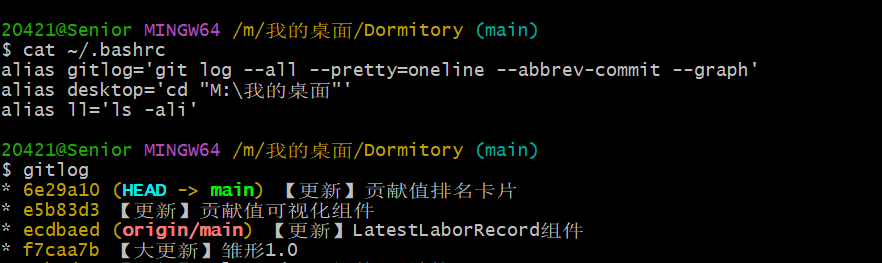
<font style="color:rgb(51, 51, 51);">设置快捷指令</font>
- 执行
touch ~/.bashrc在用户目录下打开一个快捷指令的配置文件(没有会自动创建)(如果已经有了直接使用 vim 指令进行编辑即可) - 通过
vim指令,在文件中添加快捷指令。语法:alias fastcmd="very very very long command" - 执行
source ~/.bashrc使配置生效
<font style="color:rgb(51, 51, 51);">连接远程仓库</font>
本地已经创建了仓库,但是没有连接云端仓库。云端仓库没有初始化时,连接本地的仓库进行同步云端记录
shell
git remote add origin git@git.com:repository.git<font style="color:rgb(51, 51, 51);background-color:rgb(243, 244, 244);">origin</font><font style="color:rgb(51, 51, 51);"> 为给远程仓库起的名字,一般都为orgin,表示为远程仓库</font><font style="color:rgb(51, 51, 51);background-color:rgb(243, 244, 244);">git@git.com:repository.git</font><font style="color:rgb(51, 51, 51);"> 为仓库的ssh地址</font><font style="color:rgb(51, 51, 51);background-color:rgb(243, 244, 244);">git remote</font><font style="color:rgb(51, 51, 51);"> 查看远程仓库</font>
<font style="color:rgb(51, 51, 51);">版本回退</font>
当前版本有问题需要回退时,返回上一次的历史记录。(尽量避免一次提交大量代码)
<font style="color:rgb(51, 51, 51);background-color:rgb(243, 244, 244);"></font>
shell
git reset --hard commitID # commitID记为log提交时的id,回退到id这个版本<font style="color:rgb(51, 51, 51);">配置身份信息</font>
<font style="color:rgb(51, 51, 51);"></font>
shell
git config --global user.name		# 查看用户名
git config --global user.email	# 查看用户邮箱
git config --global user.name "MY_NAME"						# 设置用户名
git config --global user.email "email@gmail.com" # 设置用户邮箱<font style="color:rgb(51, 51, 51);">设置公钥</font>
shell
ssh-keygen -t ed25519 -C "gitee ssh key"		# 生成ssh公钥
ls ~/.ssh/	# 查看所有密钥
cat ~/.ssh/id_ed25519.pub	# 查看公钥内容,复制之后在git内添加配置
ssh -T git@gitee.com # 测试连接<font style="color:rgb(51, 51, 51);background-color:rgb(243, 244, 244);">-t</font><font style="color:rgb(51, 51, 51);"> key 类型</font><font style="color:rgb(51, 51, 51);background-color:rgb(243, 244, 244);">-C</font><font style="color:rgb(51, 51, 51);"> 注释备注</font>
<font style="color:rgb(51, 51, 51);">分支</font>
shell
git branch 										# 查看分支
git branch branch_name 				# 创建分支
git checkout branch_name 			# 切换分支
git checkout -b branch_name 	# 切换并创建不存在的分支
git merge branch_name 				# 合并分支
git branch -d branch_name 		# 删除分支
git branch -D branch_name # 强制删除一个分支<font style="color:rgb(51, 51, 51);"></font>
<font style="color:rgb(51, 51, 51);"></font>
<font style="color:rgb(51, 51, 51);">解决冲突</font>
- <font style="color:rgb(51, 51, 51);">当合并分支出现代码冲突时,git会在冲突的位置将冲突的内容都显示出来,需要手动修改内容进行取舍,或者两个都不选,改一个其他值。</font>
- <font style="color:rgb(51, 51, 51);">冲突解决完之后,再重新提交一次就好了。add commit</font>
<!-- 这是一张图片,ocr 内容为: --> 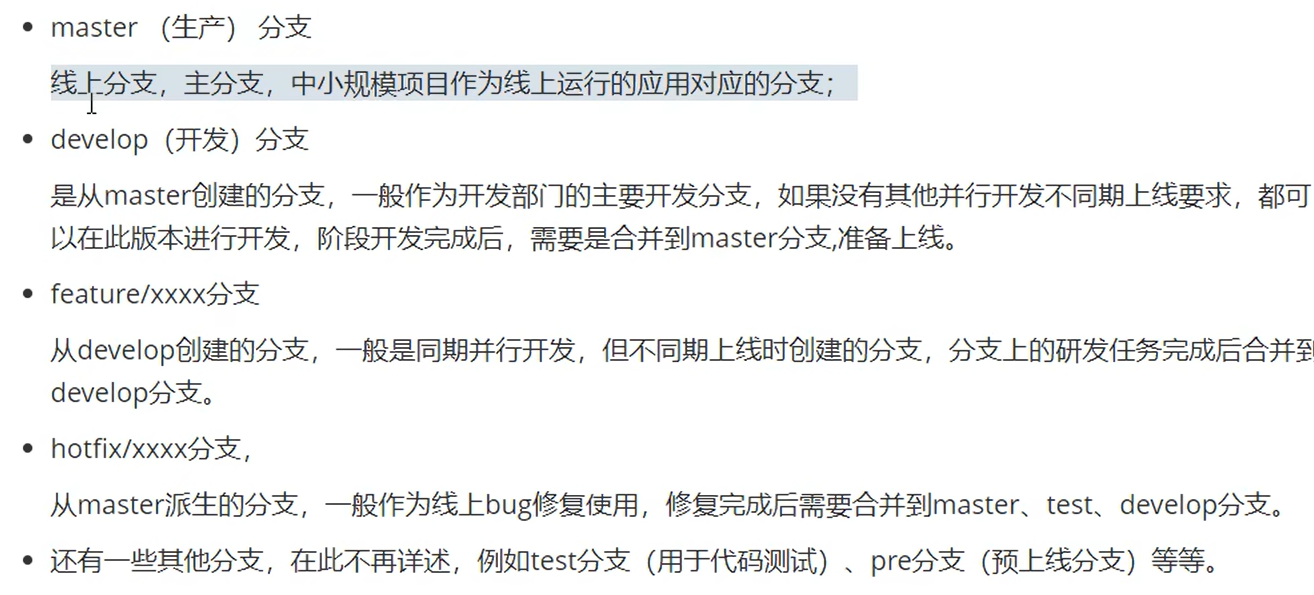
<!-- 这是一张图片,ocr 内容为: --> 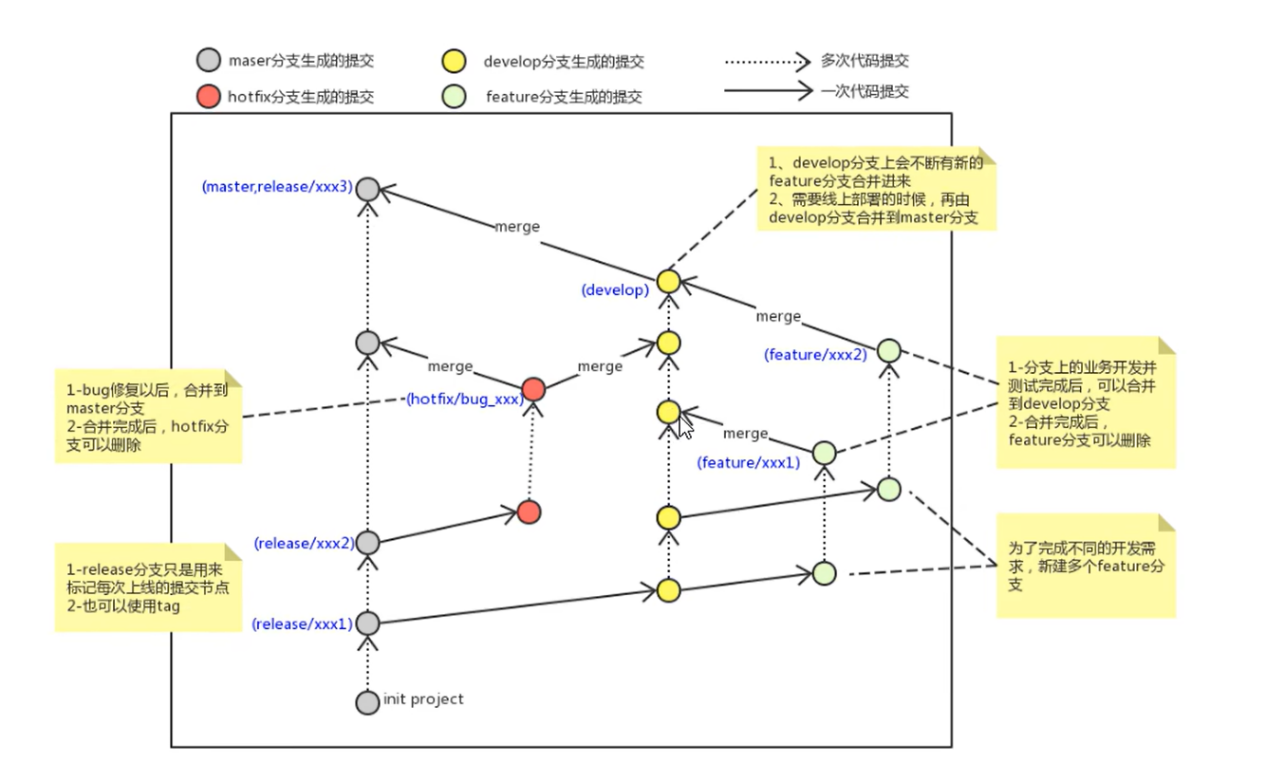
<font style="color:rgb(51, 51, 51);">推送</font>
<font style="color:rgb(51, 51, 51);background-color:rgb(243, 244, 244);">git push [-f] [--set-upstream][远端名称 [本地分支名][:远端分支名]]</font><font style="color:rgb(51, 51, 51);background-color:rgb(243, 244, 244);">git push origin master</font><font style="color:rgb(51, 51, 51);"> 分支名相同只需要输入一个即可</font><font style="color:rgb(51, 51, 51);background-color:rgb(243, 244, 244);">-f</font><font style="color:rgb(51, 51, 51);"> 强制覆盖</font><font style="color:rgb(51, 51, 51);background-color:rgb(243, 244, 244);">--set-upstream</font><font style="color:rgb(51, 51, 51);"> 推送到远端的同时并且建立起和远端分支的关联关系(以后就可以直接git push直接推送,绑定分支)</font>- <!-- 这是一张图片,ocr 内容为: -->

- <font style="color:rgb(51, 51, 51);">如果当前分支已经和远端分支关联,则可以省略分支名和远端名。(初始化过后)</font>
<font style="color:rgb(51, 51, 51);background-color:rgb(243, 244, 244);">git push</font><font style="color:rgb(51, 51, 51);"> 将master分支推送到已关联的远端分支</font>
<font style="color:rgb(51, 51, 51);"></font>
<font style="color:rgb(51, 51, 51);"></font>
<font style="color:rgb(51, 51, 51);">查看本地分支与远程分支的关系</font>
<font style="color:rgb(51, 51, 51);background-color:rgb(243, 244, 244);">git branch -vv</font>
<!-- 这是一张图片,ocr 内容为: --> 
<font style="color:rgb(51, 51, 51);">抓取跟拉取</font>
- <font style="color:rgb(51, 51, 51);">抓取 指令:</font>
<font style="color:rgb(51, 51, 51);background-color:rgb(243, 244, 244);">git fetch [remote name][branch name]</font>- <font style="color:rgb(51, 51, 51);">将仓库里的更新都抓取到本地来,但是不合并分支,保留本地的分支进度</font>
- <font style="color:rgb(51, 51, 51);">默认所有远端跟分支</font>
- <font style="color:rgb(51, 51, 51);">拉取 指令:</font>
<font style="color:rgb(51, 51, 51);background-color:rgb(243, 244, 244);">git pull [remote name] [branch name]</font>- <font style="color:rgb(51, 51, 51);">将仓库里的所有修改自动同步到本地,等同于</font>
<font style="color:rgb(51, 51, 51);background-color:rgb(243, 244, 244);">fetch+merge</font><font style="color:rgb(51, 51, 51);">,同步进度跟分支</font>
- <font style="color:rgb(51, 51, 51);">将仓库里的所有修改自动同步到本地,等同于</font>
<font style="color:rgb(51, 51, 51);"></font>
<font style="color:rgb(51, 51, 51);"></font>
<font style="color:rgb(51, 51, 51);"></font>
<font style="color:rgb(51, 51, 51);">远端冲突</font>
- <font style="color:rgb(51, 51, 51);">当代码没有pull而直接push时,可能造成分支冲突,此时可能需要解决代码冲突,解决冲突之后再重新push一次即可</font>
实战
生成 SSH Key
json
ssh-keygen -t rsa -b 4096 -C "your_email@example.com"-t:type, 指定加密算法-b:bits, 指定密钥长度-C:comment, 添加注释,通常为 git 账号绑定的邮箱
验证 SSH 连接
json
ssh -T git@github.com
ssh -T git@gitee.com配置邮箱和用户名
json
git config --global user.name		# 查看用户名
git config --global user.email	# 查看用户邮箱
git config --global user.name "MY_NAME"						# 设置用户名
git config --global user.email "email@gmail.com"	# 设置用户邮箱